Produce Labels with Statements
Overview
Statement runs can optionally generate mailing labels for printed financial statements. The mailing-label feature has been re-enabled and now produces labels as a separate file, eliminating the previous workflow where labels were appended to the end of the statements PDF.
What Changed
- Previously:
- Statements and labels were combined into a single PDF.
- Printing required manual page-range selection and swapping paper types mid-job (plain paper for statements, label stock for labels), increasing the chance of misprints.
- Now:
- Labels are generated as a separate PDF.
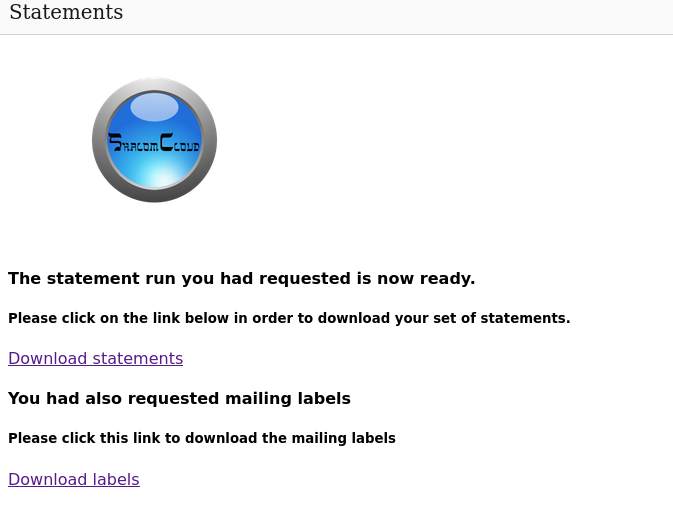
- When the statement run completes, the notification email includes:
- One link for the statements PDF
- One link for the labels PDF
How to Generate Mailing Labels
- Start a statement run as usual.
- Select the checkbox: Include mailing labels.
- Complete the run with your normal settings.
- Wait for the completion email.
- Use the labels link in the email to open/download the labels PDF.
Printing Mailing Labels (Critical Settings)
The system controls label layout (padding, spacing, and margins). Printer scaling overrides can cause misalignment.
Required Print Settings
- Print one-sided.
- Set scaling to Actual Size (100%).
- Do not use scaling options such as:
- “Shrink to fit”
- “Fit to printable area” (or similar wording)
- These options can compress the output and cause labels to miss the label boundaries.
- Do not use scaling options such as:
Recommended First-Time Validation
- Print the first page of the labels PDF on plain paper.
- Hold the printed sheet against a label template/sheet.
- Confirm alignment before printing on label stock.
Output
- Statements print from the statements PDF.
- Mailing labels print from the labels PDF using Actual Size to preserve alignment.